Welding data collection: welder's workflow
Proceed as follows:
Before welding
| 1. | Press the green button to select Task. |
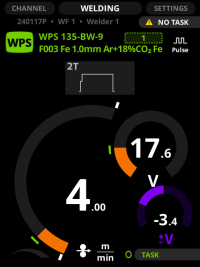
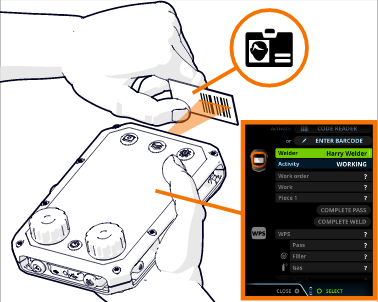
| 2. | Switch the barcode reader ON at the front of Control Pad, if you want to use it to read a barcode. You can also enter the barcode manually. |
| 3. | To enter your personal ID to the system, select: |
>> Activate code reader to read the barcode or QR code on your ID card
OR
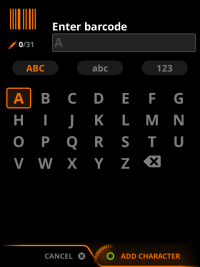
>> Enter barcode to enter the barcode manually
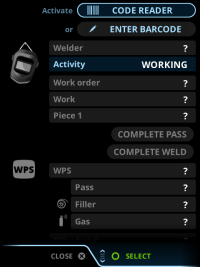
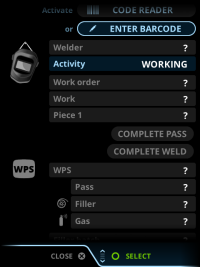
| 4. | Read the barcode or QR code on your ID card or enter the barcode manually. For more information, see Control Pad. |
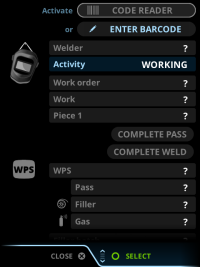
| 5. | Identify the WPS to be used. |
>> Select the WPS in the Task view or read the barcode on the printed document. The first pass of the WPS is selected automatically. For more information, see Digital WPS: selecting WPS pass in WPS view.
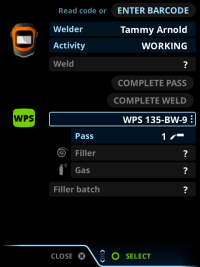
| 6. | Identify the weld. |
>> Read the weld's barcode from a printed work order or select the information on the display. Information about the weld appears on Control Pad's display. During welding, the recorded welding data is linked to the weld in WeldEye.
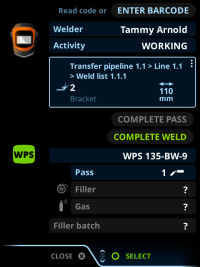
| 7. | Record the filler material batch number to provide traceability. |
>> Read the barcode from the filler wire package. If there is no barcode available, select Enter barcode in the Task view. Use the virtual keyboard to enter the barcode number by hand.
>> When you read or enter the barcode for the first time, Control Pad does not recognize it. Select Filler batch to indicate that the barcode refers to the filler batch number.
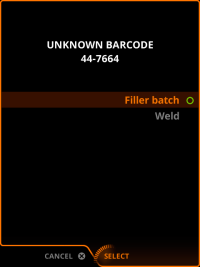
| 8. | To select a different weld pass from the WPS, use pass selection in the Task view. |
After welding
| 1. | When the weld is complete, select Complete weld. |

|
This function is available only if the weld has been identified. The availability is controlled in the WeldEye cloud service settings. |
>> If heat input tracking is enabled, enter the length of the weld, which is used for heat input calculation. For more information, see Welding data collection: tracking heat input.
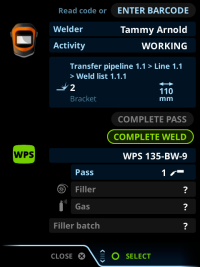
| 2. | When you finish using the welding machine, log out of the system. |
>> Power off the machine or scroll to Welder, press the green button, and select Log out.
|
|
Log out of the system to avoid the next welding data getting registered under your name. |
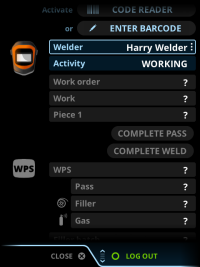
In the WeldEye cloud service settings, you can filter the items that Control Pad shows to be identified. For example, you can have the WPS and the filler batch number shown, but not the filler material or shielding gas. This does not prevent you from scanning also other identifiers with the barcode reader.
